
How to Make a GIF from a Video
Got a clip you want to loop and share? Whether it's an MP4 from your camera roll, a screen recording, or a downloaded video — here's how to turn it into a GIF in under a minute. No app to install, no account, nothing to pay.
Skip straight to it
Drop your video into the converter below and it handles the rest. Come back to this guide if you want tips on trimming or optimizing the output.
Open Video to GIF ConverterStep-by-Step
Open the editor and upload your video
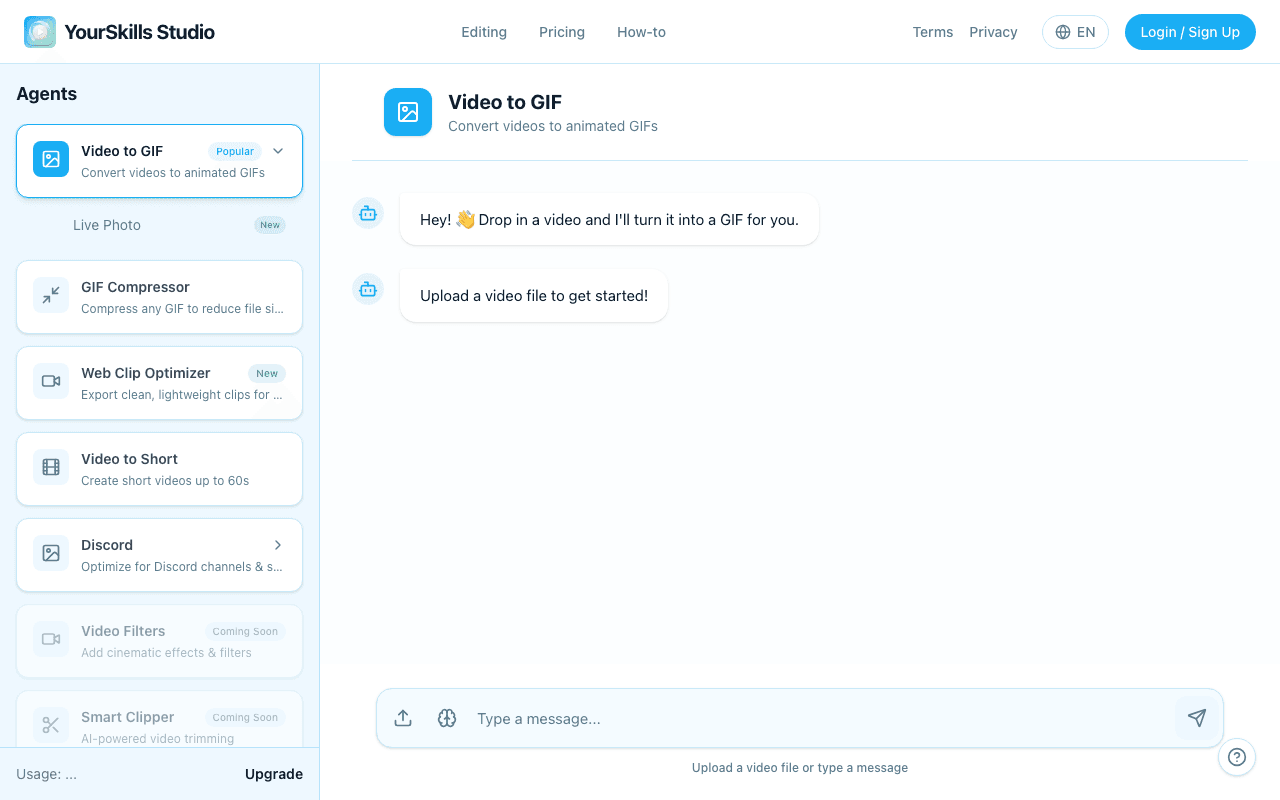
Head to the Video to GIF converter and click the upload button. Pick your MP4, MOV, or WebM file. The video loads directly in your browser — nothing gets sent to any server.
Trim to the moment you want
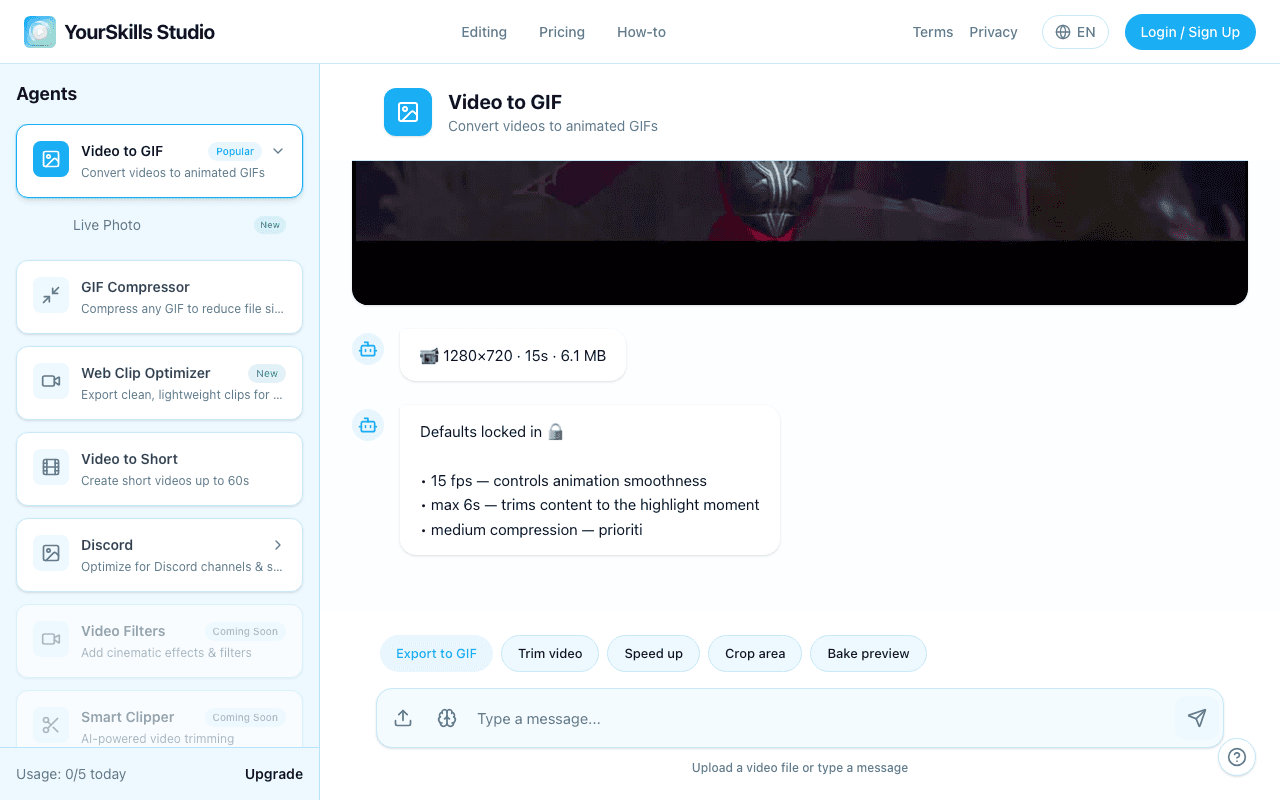
Once uploaded, you'll see action buttons appear in the chat. If you only want a specific slice of the video, tap Trim video and type the start and end times — something like start 0:08 end 0:13. You can also leave it as-is to convert the full clip.
Export to GIF and download
Tap Export to GIF. The progress card appears first, then the download action appears when the GIF is ready.
After the progress card completes, the conversation shows the generated GIF preview with the same action row used in the product.

Animated GIF preview
Looping GIF Result Artifact with Download, Retry Generation, Thumbs Up, and Thumbs Down actions
Tips for a Better GIF
- Keep it short: 3–6 seconds loops best and stays under most platform size limits.
- Use a clean source: a 720p or 1080p source gives you a cleaner GIF than a blurry 360p clip.
- Posting to Discord? Use the Discord GIF Compressor to target the 8 MB or 25 MB limit automatically.
What file formats work?
MP4 and MOV are the most common and work without any issues. WebMis also supported. If you have an MKV or AVI file, convert it to MP4 first using VLC (File → Convert/Stream) — that only takes a few seconds and you won't notice a quality difference.
Phone videos from both iPhone and Android upload fine. iPhone exports HEVC (.mov) files by default, which ClipShift handles correctly.
What if the GIF comes out too large?
A 5-second clip from a 1080p video can easily produce a 15–30 MB GIF. A few things help:
- Trim the clip more aggressively — every second you cut roughly halves the file size
- Use the Discord GIF Compressorif you're targeting a specific size limit. It auto-adjusts resolution and frame rate so you don't have to guess.
- Or try the GIF Compressorto squeeze down a GIF you've already made.
Related guides
How to Make a GIF on iPhone
Safari-specific steps for iPhone users
GIF from a YouTube Video
Includes steps for downloading the clip
Video to GIF FAQ
What video formats can I convert to GIF?
MP4, MOV, and WebM all work. If you have an MKV or AVI file, convert it to MP4 first using VLC or HandBrake — the conversion only takes a few seconds.
How long can the GIF be?
There's no hard limit in ClipShift itself, but GIFs over 6–8 seconds get large fast and loop awkwardly. For sharing on Discord, Twitter, or messaging apps, 3–5 seconds is the sweet spot.
Is my video uploaded to a server?
No. Your video stays private while you make the GIF.
The GIF is too large for Discord — what do I do?
Use the Discord GIF Compressor, which automatically targets the 8 MB or 25 MB limit. It adjusts frame rate and resolution to hit the target without you having to guess.