
How to Make a GIF from a YouTube Video
Spotted the perfect moment in your YouTube video and want to turn it into a GIF? Export the clip as an MP4, upload it here, and convert it in your browser.
Ready to create?
Skip the reading and jump straight into our free, privacy-first GIF maker. No account or app install required.
Go to Video to GIF ConverterStep-by-Step: YouTube Video to GIF
Export your own YouTube clip
Start with a video file you own or have permission to repurpose. Export the clip from your editor as an MP4, then use that file as the source for the GIF.
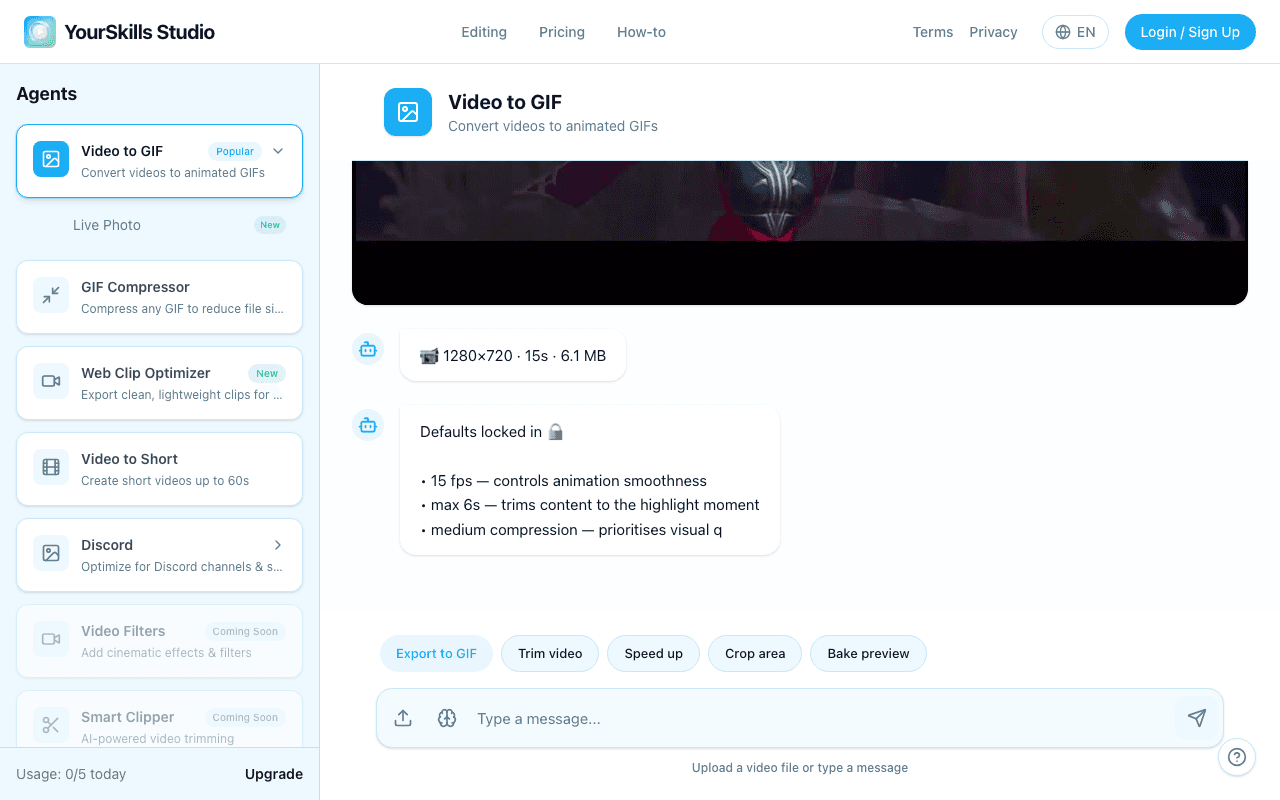
Trim to the moment
Tell the AI assistant which part of the clip you want (e.g., "keep from 0:12 to 0:17"). The best GIFs are under 5–6 seconds, so pick the highlight.
Export & share
Tap "Export to GIF". Once the result is ready, download and share it anywhere.
The result state shows the converted GIF preview so you can confirm the loop before downloading.

GIF from your exported YouTube MP4
Animated GIF Result Artifact with Download, Retry Generation, Thumbs Up, and Thumbs Down actions
Tips for a Great YouTube GIF
- Download the highest resolution available: A higher-quality source video produces a sharper GIF. Aim for 720p or 1080p if the clip allows it.
- Keep it under 6 seconds: Shorter GIFs loop more naturally and load faster everywhere — especially on Discord and Twitter/X.
- Sharing on Discord? Use our Discord GIF Compressor to automatically keep the file under the 8MB or 25MB limit.
- On iPhone? See our guide on how to make a GIF from a video on iPhone for Safari-specific steps.
Why not use an online YouTube-to-GIF site?
Sites that take a YouTube URL directly and produce a GIF usually process your video on their servers, add watermarks, and cap clip length. This workflow starts from your own exported MP4 and gives you a clean GIF with no watermark.
YouTube to GIF FAQ
Can I paste a YouTube URL to make a GIF?
No. Export a YouTube video you own or have permission to reuse as an MP4 first, then upload that file to the Video to GIF converter.
How long should a YouTube GIF be?
Use a short 1-6 second moment. Shorter clips loop better, export faster, and keep the GIF file size easier to share.
Can I make a YouTube GIF on iPhone?
Yes. Save or export the video file on your iPhone, then open the Video to GIF converter in Safari and upload the MP4.
Related guides
- How to Make a GIF from a Video — the general MP4, MOV, and WebM workflow.
- How to Make a GIF from a Video on iPhone — Safari-specific upload and save steps.
- How to Use Agent Commands and Memory — trim, crop, speed, and frame-rate commands.