
How to Make a GIF from a Video on iPhone
Want to turn that funny video or Live Photo into a shareable GIF? You don't need to clutter your iPhone with ads-filled apps. Here's how to make a GIF from any video on iPhone, right from your browser.
Ready to create?
Skip the reading and jump straight into our free, privacy-first editor. No app install required.
Go to Video to GIF ConverterWhy use a browser-based converter on iPhone?
If you search the App Store for "GIF maker," you'll find dozens of apps. The problem? Most of them:
- Require paid subscriptions to remove watermarks
- Are filled with intrusive video ads
- Upload your personal videos to their servers
- Take up valuable storage space on your device
Using ClipShift in the browser means you can make the GIF without an app install, watermark, or account.
Step-by-Step: Converting Video to GIF
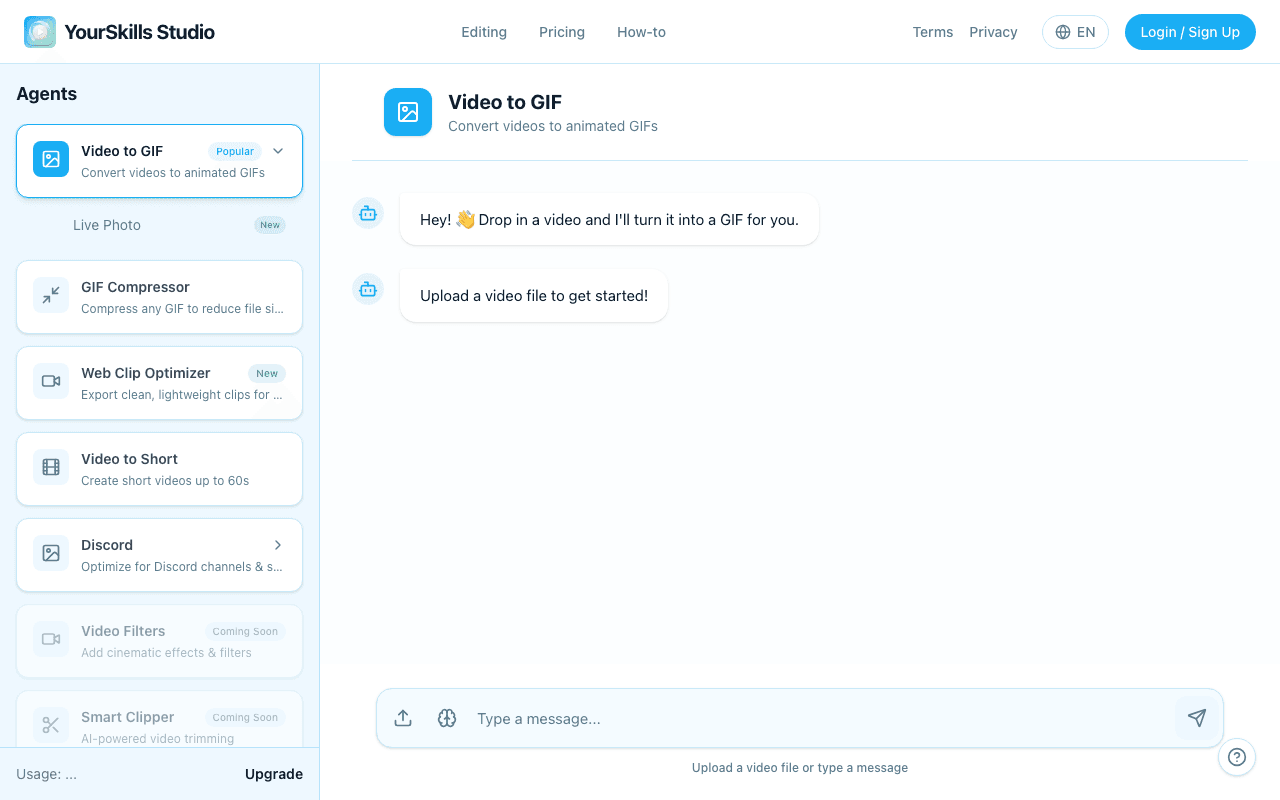
Upload your video
Tap the upload button. You can choose to take a new video, select from your Photo Library, or browse your files. Select the video you want to convert.
Trim (Optional)
If you only want a specific part of the video, tap "Trim video" and tell the AI assistant which seconds to keep (e.g., "start 00:02 end 00:05").
Export and save
Tap "Export to GIF". Once processing is complete, tap Download on the result card and save the GIF from Safari.
The completed state shows the animated GIF preview and export actions before you save it on iPhone.

Animated GIF preview
Looping GIF Result Artifact with Download, Retry Generation, Thumbs Up, and Thumbs Down actions
Pro Tips for the Best Results
- Keep it short: The best GIFs are usually under 5 seconds. Use the trim action to isolate the best moment.
- Watch the file size:If you're planning to share on Discord, try our dedicated Discord GIF Compressor which automatically limits the size to 8MB or 25MB.
- Live Photos:To convert a Live Photo, open your Photos app, select the Live Photo, tap the Share icon, and choose "Save as Video" first. Then upload that video to ClipShift.
iPhone GIF FAQ
Can I make a GIF on iPhone without installing an app?
Yes. Open the Video to GIF converter in Safari, upload a video or saved Live Photo video, trim the moment, and download the GIF.
Can I turn an iPhone Live Photo into a GIF?
Yes. In Photos, share the Live Photo as a video first, then upload that video to the GIF converter.
Where does the GIF download on iPhone?
Safari usually saves downloads to the Files app. You can then share the GIF from Files or save it where you need it.
Related guides
- How to Make a GIF from a Video — the desktop and mobile browser workflow.
- How to Make a GIF from a YouTube Video — start from an exported MP4 you own.
- How to Turn a Video into a Live Photo — use video when you want iPhone lock-screen motion instead of a GIF.