
How to Auto Segment a Video with Auto clip
Use Auto clip (beta) to find strong moments in a short video, preview the suggestions, and turn the clip you like into a /Trim command. If you prefer typing, the slash command is /AutoClip.
Preview the result
Watch a real clip suggested by Auto clip (beta), then open the editor if you want to try the same flow with the demo video.
Open Auto clip demoTry the demo video
Open Short Video with the gameplay demo preloaded, then click Auto clip (beta). The feature is currently in beta, so review the preview before exporting.
Requirements and limits
| Video length | Under 1 minute. Trim longer videos first, then run Auto clip (beta). |
|---|---|
| Best for | Gameplay, reaction clips, reveals, transitions, and other videos with clear visual changes. |
| Before export | Preview the suggested clip and adjust the /Trim time if the cut needs a small tweak. |
| Feedback | Use @support or email yourtopskills@gmail.com if a suggestion looks wrong. |
How to auto segment a video
Upload the video
Open Short Video, upload your clip, or use the demo CTA above to load the gameplay sample. After the source preview appears, the action toolbar shows Auto clip (beta) next to the normal trim and crop actions.
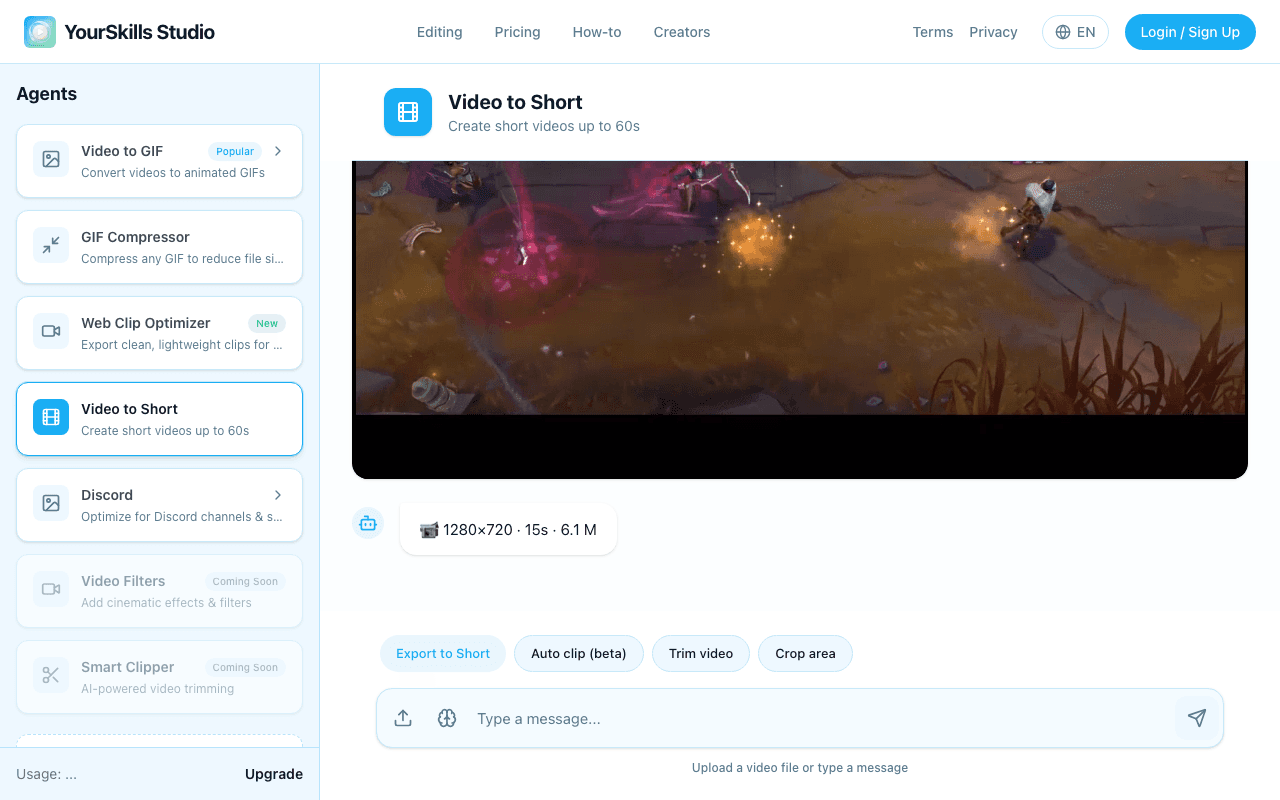
Click Auto clip (beta)
The agent shows a short beta notice, then creates a list of clip suggestions. Each suggestion includes a start time, end time, duration, and confidence so you can quickly choose what to preview.
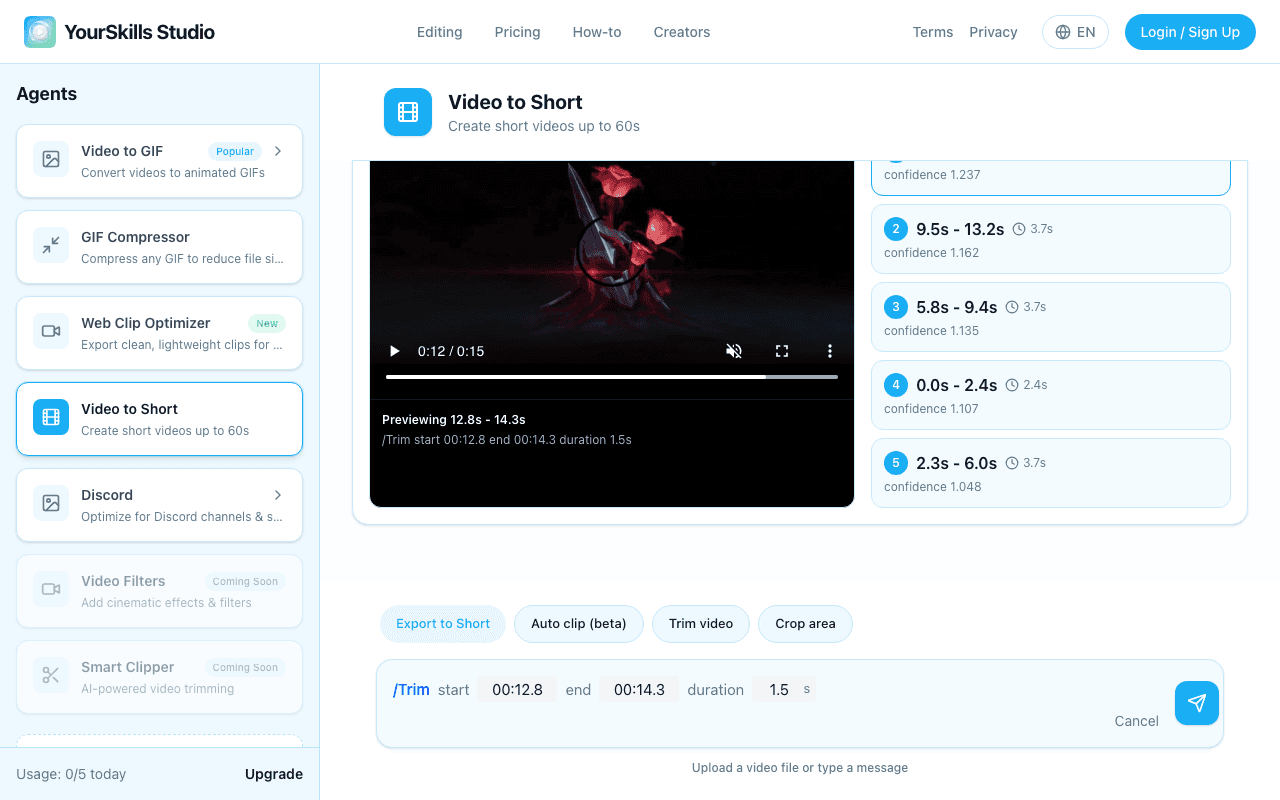
Preview and select a clip
Click any candidate card to watch that range in the muted preview player. The Trim command editor opens with start time, end time, and duration fields already filled, including one-decimal seconds when needed.
Send /Trim and export
Press send to create the trim segment. You can still edit the start time, end time, or duration before sending if you want a tighter cut.
Example highlights from the demo video
These are the kinds of moments Auto clip is meant to surface: action, transitions, reveals, and short scenes that can stand alone as clips.
What Auto clip suggested
In the demo, Auto clip returns five suggestions. Open each one, pick the range that feels strongest, then send the prefilled Trim command editor.
FAQ
Why is the feature limited to videos under 1 minute?
Short videos finish faster and keep the beta experience predictable. If your video is longer, trim it first, then run Auto clip (beta) on the shorter version.
Can I choose a different candidate?
Yes. Every generated candidate is shown as a card. Select a card to watch it and update the Trim command editor with that candidate's start time, end time, and duration.
Can /Trim use decimal seconds?
Yes. /Trim and /SpeedUp accept one-decimal timestamps such as 00:01.1 and 00:05.7.
Related guides
- How to use Agent Commands and Memory
- How to make a GIF from a video
- How to turn a video into a Live Photo
- Video trimmer online landing page
- YouTube Shorts maker landing page
Find clips automatically
Load the demo video, click Auto clip (beta), preview every candidate, then send the generated Trim command.
Start with demo video