
How to Use Agent Commands and Memory
ClipShift is driven by a small set of built-in skills — Auto clip (beta), Trim video (/Trim), Crop area (/Crop), Speed up (/SpeedUp), Adjust frame rate (/AdjustFPS), and Adjust resolution (/AdjustResolution). This guide shows how those commands work, and how to inspect, update, or delete the edits the agent has remembered so you stay in control of every export.
Try it now
Open any agent (Video to GIF, Discord Emoji, Live Photo, …), upload a clip, and the command UI appears automatically. No syntax to memorize — but knowing the commands helps you predict exactly what the agent will do.
Open Video to GIF agentWhat built-in skills are
An action command is a single line of text the agent uses to record an edit decision. You almost never type them yourself — you click an action button (Trim video, Crop area, Speed up, etc.) and the UI emits the command for you. Each command is small and deterministic, so the drawer can show exactly what will be applied.
The full list:
- Auto clip (beta) — find visual clip candidates and prefill a
/Trimcommand. Type/AutoClipif you want to start it from the composer. /Trim start MM:SS.s end MM:SS.s— remove a segment of the video/SpeedUp start MM:SS.s end MM:SS.s duration by Nx— speed up a segment byN×/Crop x=N y=N size=N— crop to a square at the given pixel offset/AdjustFPS N— set the output frame rate/AdjustResolution N— set the output resolution cap/Trim start MM:SS end MM:SS— used by the Live Photo agent to pick the exact 3-second segment
Step-by-Step: drive the agent with commands
Upload a video to start a session
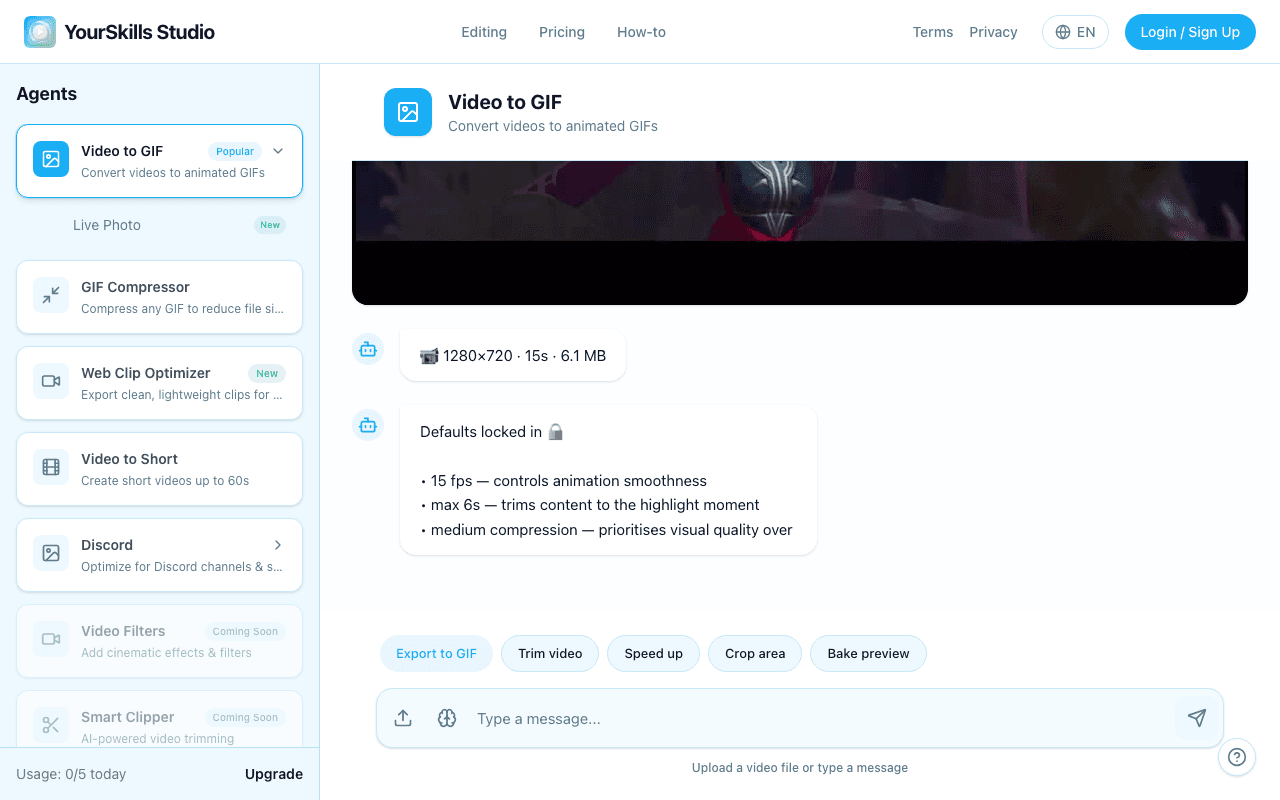
Open the agent that matches your goal — for example, Video to GIF — and drop in your clip. Once the video loads, the chat input bar shows the action toolbar plus a Brain icon beside the upload icon. The Brain icon opens your Agent Memory drawer.
Trigger an action — the agent records a command
Click Trim video, drag the handles to your moment, and confirm. Internally the UI emits something like /Trim start 00:01 end 00:04. The agent confirms in chat ("Alright, I will remove the video segment from 00:01 to 00:04."), and the trim is now part of memory.
The same flow applies to every action: Crop area opens a square selector and emits /Crop, Speed up emits /SpeedUp, Adjust frame rate and Adjust resolution emit their respective commands.
Open the Agent Memory drawer
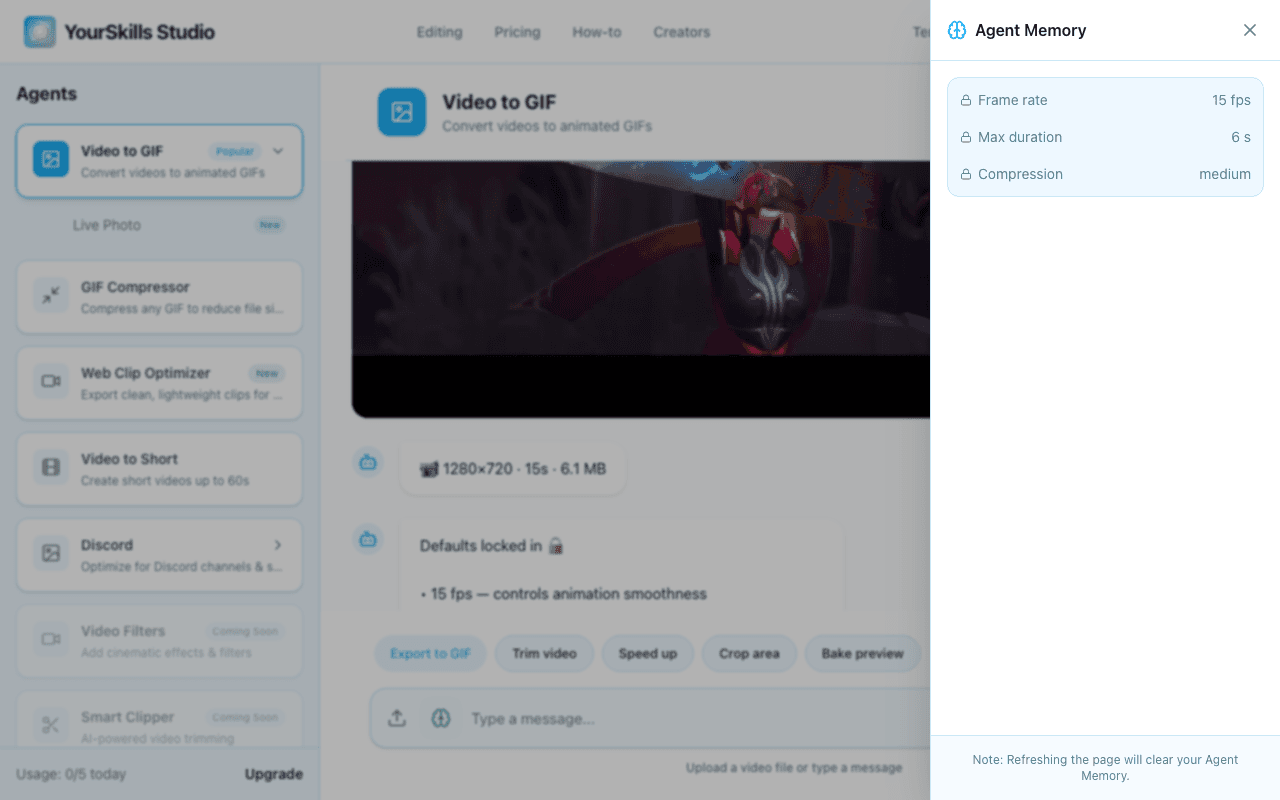
Click the Brain icon beside the upload icon in the chat input. The Agent Memory drawer slides in and shows the locked defaults for the current agent, plus everything the agent has remembered for this session: every trim and speed-up segment, your crop area, GIF constraints, and any preset-specific config such as Discord Emoji or Sticker settings.
Update a saved config by re-running its action
To change a frame rate or resolution, click Adjust frame rate or Adjust resolution again and pick a new value. The new command overwrites the previous one in memory. To change a crop, click Crop area and select a new region — the new /Crop replaces the old one.
Delete a trim or speed-up segment
In the Agent Memory drawer, each trim and speed-up segment has a trash icon next to it. Click it to remove that segment from memory; the agent will skip it on the next export. Crop, FPS, and resolution are overwritten by re-running the matching action, not deleted individually.
Reset everything by reloading
Memory is scoped to your current session. Refresh the page or upload a new video to start with a clean slate — no command in memory means the agent exports the clip as-is.
The Agent Memory drawer should show the current session's saved trim, speed-up, crop, frame-rate, and resolution decisions. When you export next, the agent applies only the edits that are still visible in memory.
Tips and gotchas
- Trims stack. Adding two trim segments removes both ranges; they do not replace one another. Use the trash icon to undo a specific one.
- Speed-ups stack too, in the order you added them. Adjacent speed-ups can produce surprising final durations — preview before exporting.
- Crop overrides aspect ratio. Once a
/Cropis in memory, all subsequent exports use that square region until you re-crop. - Discord presets remember per-preset config. When you tweak fields inside the Discord Emoji, Sticker, or Avatar agent, those choices are saved per preset and reappear the next time you open that agent in the same session.
FAQ
Can I type commands directly into the chat?
The chat input accepts free text, but commands are only processed when emitted by the agent's own action UI. Always click the action buttons — they validate the values and keep memory in sync.
Does memory persist after I close the tab?
No. Closing the tab or refreshing clears the trims, crops, FPS, and resolution choices. Your uploaded video is also released.
What's the difference between memory and the timeline?
Memory is the structured set of decisions the agent will apply on the next export (commands, crop box, FPS, etc.). The timeline / preview shows your raw video. The export step combines the raw video with everything in memory in one pass.
Why does the agent sometimes prompt me to confirm a command?
For destructive or large-impact actions, the conversation template inserts a confirmation turn. That keeps the agent predictable: nothing enters memory until you explicitly accept it.
Can I undo a command after I've exported?
Yes — opening the Agent Memory drawer and removing the segment (or re-running the action with a new value) updates memory immediately. Run the export again and the new configuration is applied.
Related guides
- How to Make a Custom Discord Emoji (Animated)
- How to Make a GIF from a YouTube Video
- How to Turn a Video into a Live Photo
Try the commands on your own clip
Upload a video, trim, crop, and check the Agent Memory drawer before export.
Open Video to GIF agent