Discord Emoji Maker: How to Make a Custom Discord Emoji
Use this Discord emoji maker to turn a short video into a custom animated emoji that fits Discord's 128×128 px and 256KB limits. You'll crop the subject, trim the motion, export a GIF, and upload it to your server without Photoshop or a paid app.
Make your emoji now
Our free Discord Emoji Maker automatically resizes to 128×128 px and compresses under 256KB. Trim, crop, and speed up your clip — no account or app install required.
Go to Discord Emoji MakerDiscord Emoji Maker Size Requirements
Before creating your emoji, here are Discord's official limits:
- Dimensions: 128×128 pixels (Discord scales it down to 22×22 in chat)
- File size: Under 256KB
- Format: GIF (animated) or PNG (static)
- Animated emojis: Require a server with at least one boost (Level 1)
Step-by-Step: Create an Animated Discord Emoji
Upload your source video
Click the upload icon in the Discord Emoji Maker and pick your clip. Any common video format works (MP4, MOV, WebM). Aim for a clip with a clear subject — a reaction face, a pet doing something funny, or a simple looping animation all work great.
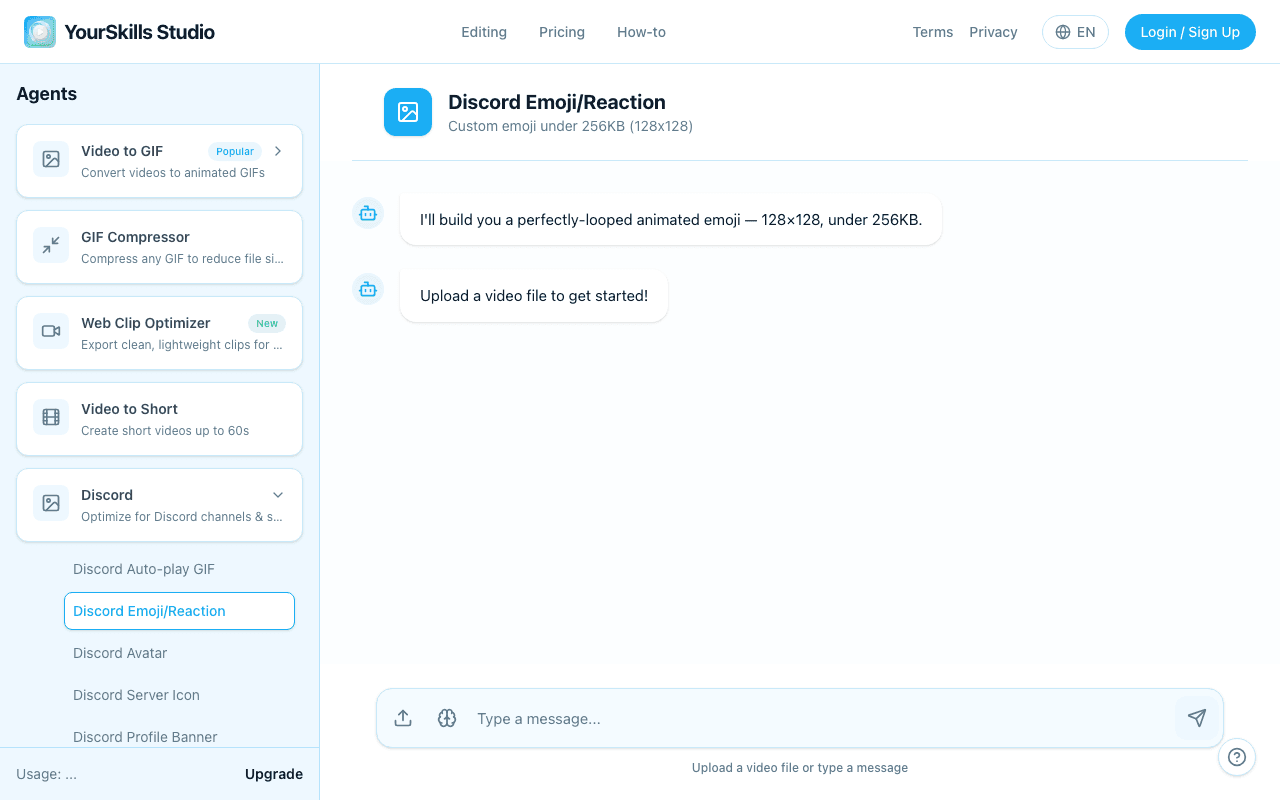
Choose your adjustments
After uploading, a row of action buttons appears. You can use any combination:
- Trim video — cut to the best 1–2 second moment
- Speed up — make a long clip snappy for emoji use
- Adjust frame rate — lower fps reduces file size (8 fps is the default for emojis)
- Adjust resolution — drop below 128px if you need more compression room
- Crop area — select exactly which part of the video to use (see below)
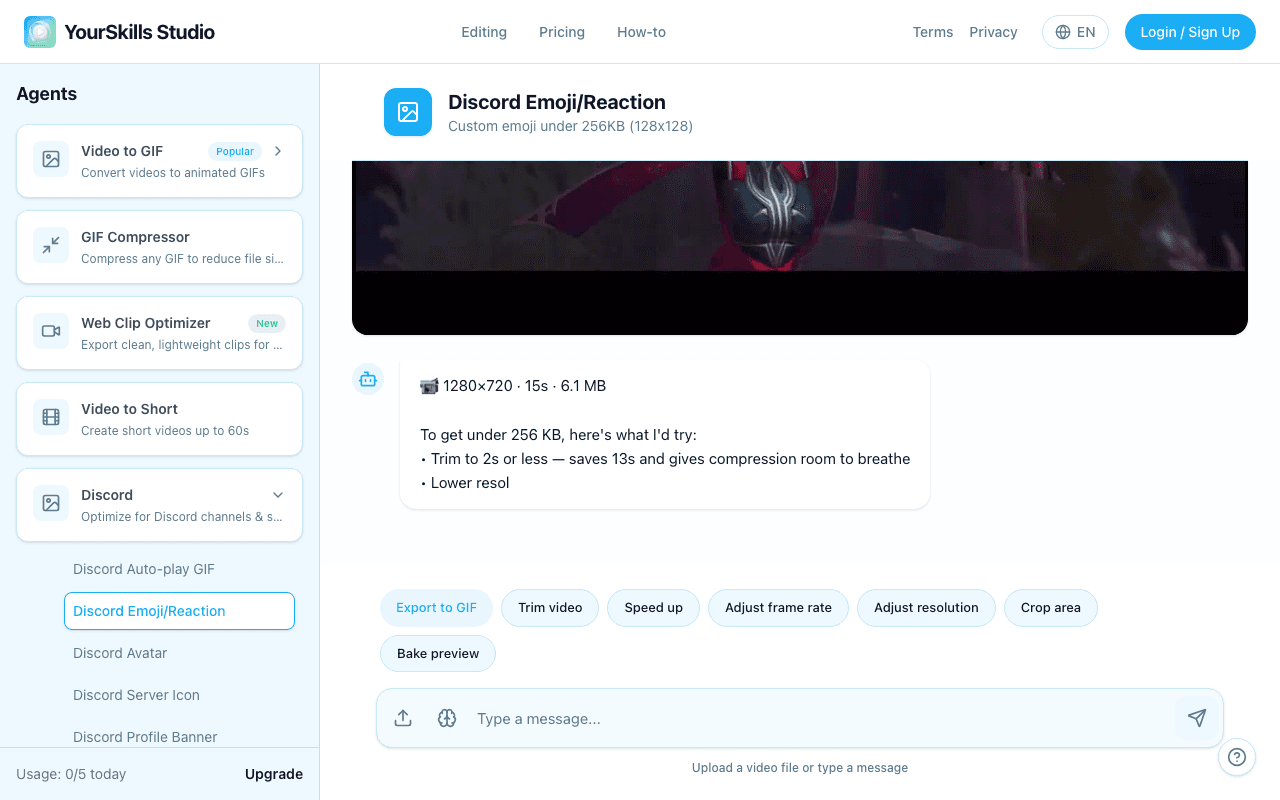
Crop to centre your subject
Most videos are filmed in 16:9 widescreen. When they get squished into a 128×128 square, the subject ends up tiny or cut off. The Crop area control lets you drag a square selection directly over the video preview to pick exactly what gets included.
How to use Crop area:
- Click Crop area — the video preview turns into a crop editor
- Drag the video to position the square over your subject
- Use the Zoom slider to zoom in or out
- Click Apply cropwhen you're happy with the framing
Tip: Zoom in just enough to fill the frame. Excessive zoom causes pixelation.
Export the GIF
Click Export to GIF. The editor processes your clip with all your settings applied — trim, speed, crop, resolution — and produces a 128×128 GIF under 256KB. Download it when the result card appears.
The final state is a generated emoji GIF preview, not another settings screen.
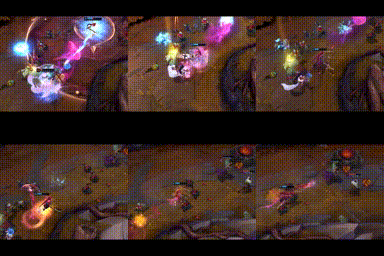
128×128 animated emoji GIF
Result Artifact preview with Download, Retry Generation, Thumbs Up, and Thumbs Down actions
Upload to Discord
In Discord, open Server Settings → Emoji → Upload Emoji. Select your downloaded GIF, give it a name (e.g., :myemoji:), and save. It's live instantly.
Why Crop Matters for Discord Emojis
Emojis display at just 22×22 px in chat. Every pixel counts. If your subject only takes up a quarter of the frame (common with phone videos filmed in landscape mode), it becomes unreadable at emoji size. Cropping first means the output is 100% subject — no wasted space, maximum clarity.
| Scenario | Without crop | With crop |
|---|---|---|
| Landscape video (16:9) | Letterboxed black bars, tiny subject | Subject fills the square |
| Off-centre subject | Half the emoji is background | Drag to re-centre in seconds |
| Wide shot | Subject too small to read | Zoom + crop isolates the moment |
Tips for the Best Animated Emoji
- High contrast matters: Emojis display at 22×22 px in chat. Bold colours and clear motion are more readable than fine details.
- Keep it short: 1–2 seconds is the sweet spot. Short loops look more polished and stay under the 256KB limit easily.
- Loop cleanly: The last frame should blend naturally back into the first. Abrupt cuts look jarring in a looping emoji.
- Dark backgrounds: Discord has dark and light themes. A dark-neutral or high-contrast background keeps the emoji readable in both.
- Animated emojis need a boost: Your server needs at least one boost to use animated emojis. Static PNG emojis work on any server.
Troubleshooting: GIF over 256KB?
If your exported emoji is too large, try these in order:
- Trim the clip to 1–2 seconds (biggest impact)
- Lower the frame rate to 6–8 fps via Adjust frame rate
- Use Speed up to shorten the clip duration
- If the file is still too large, lower the resolution to 96px via Adjust resolution
Discord Emoji Maker FAQ
What is the best Discord emoji maker size?
Use 128×128 pixels. Discord displays emojis much smaller in chat, so a tight square crop usually looks clearer than a full widescreen frame.
How large can a Discord emoji file be?
Keep the exported file under 256KB. For animated emojis, trim to 1–2 seconds, lower the frame rate, and crop tightly around the subject.
Can I make an animated Discord emoji from a video?
Yes. Upload a short video, crop the action to a square, export it as a GIF, and upload the downloaded file in Discord Server Settings under Emoji.
Do I need Nitro to upload custom Discord emojis?
You do not need Nitro to upload custom emojis to a server where you have the right permission. Nitro is needed to use custom and animated emojis across other servers.
Related guides
- Discord Sticker Size Guide — 320×320, under 512KB
- Discord Emoji Size Guide — 128x128, under 256KB
- How to Make an Animated Emoji for Discord — turn a video or GIF into a Discord emoji
- Discord Animated Avatar — Circular crop, under 10MB (Nitro)
- All Discord Formats
Ready to make your Discord emoji?
Open the free Discord Emoji Maker, upload your clip, crop it square, and export a Discord-ready GIF under 256KB.
Open Discord Emoji Maker