
How to Set a Live Photo as Wallpaper on iPhone
Live Photos make your iPhone lock screen come alive. Whether you've just converted a video into a Live Photo or captured a great moment, here is how to set the perfect key photo and use it as your wallpaper.
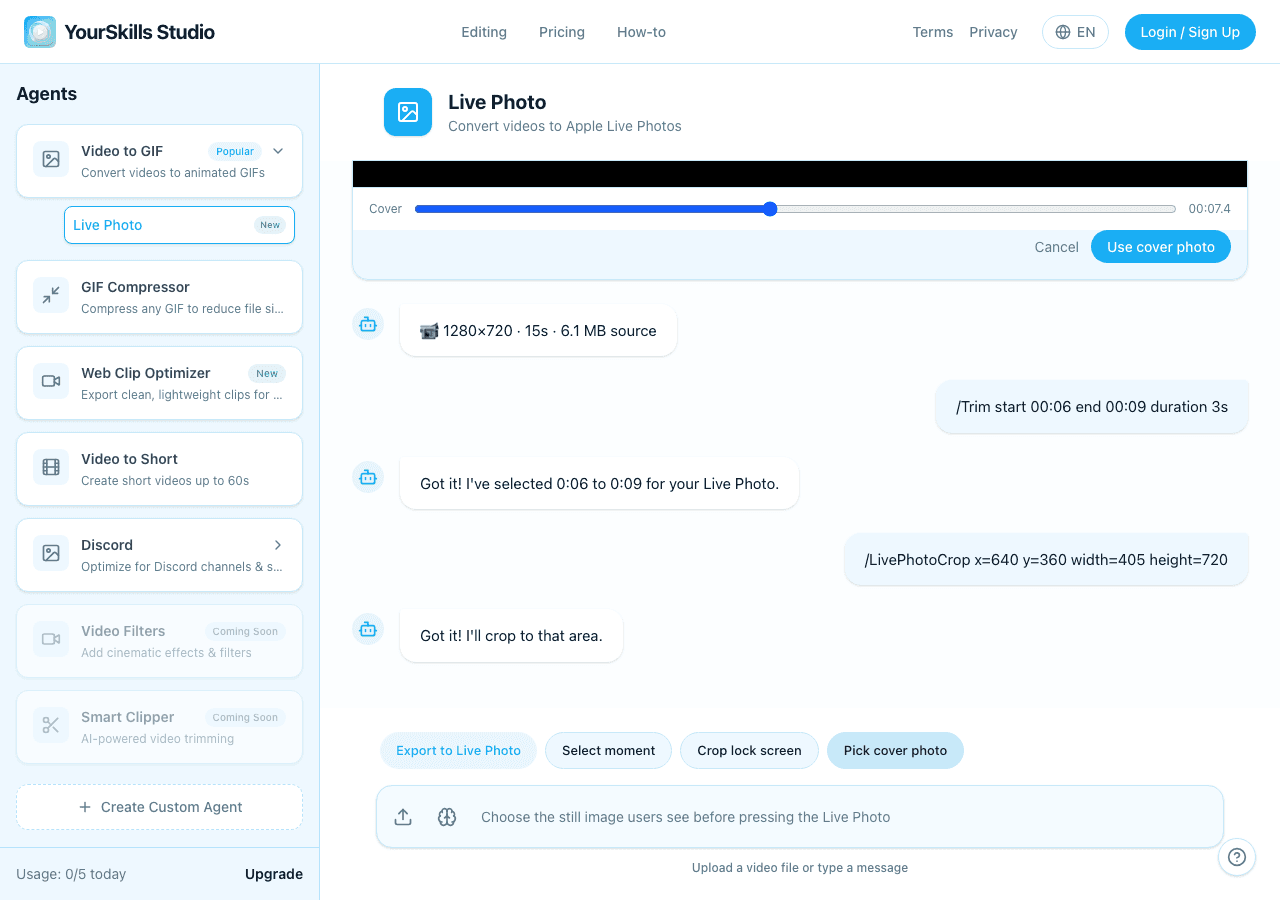
Part 1: How to Change the Key Photo
The "Key Photo" is the still image that displays before you long-press the screen. To change it:
- Open the Photos app and find your Live Photo.
- Tap Edit in the top right corner.
- Tap the Live Photo icon (the concentric circles) at the bottom.
- Slide the frame viewer to find your favorite moment.
- Tap Make Key Photo.
- Tap Done.
Part 2: Set as Lock Screen Wallpaper
Now that your Live Photo is ready, let's set it as your wallpaper:
- Go to Settings > Wallpaper.
- Tap Add New Wallpaper.
- Select Photos and choose your Live Photo.
- Ensure the Live Photo icon at the bottom left is turned ON (not crossed out).
- Tap Add in the top right corner, then choose whether to set it as a Wallpaper Pair or customize your Home Screen separately.
Your lock screen should show the selected key photo while idle. When you press and hold the lock screen, the Live Photo animates from the paired HEIC and MOV files saved in Photos.
Troubleshooting
- Live Photo not animating? Make sure Low Power Mode is disabled, as it restricts animations.
- Can't find the Live Photo option in Wallpapers? Since iOS 16, Apple temporarily removed Live Wallpapers but brought them back in iOS 17. Make sure you are updated to iOS 17 or later.
- Need a Live Photo? Use our Video to Live Photo Converter to create one from any video.
Live Photo Wallpaper FAQ
Why is my Live Photo wallpaper not moving?
Check that the Live Photo option is enabled, Low Power Mode is off, and the photo was saved as a real Live Photo instead of a normal video or still image.
Do I need iOS 17 or later for Live Photo wallpaper?
Live Photo wallpaper support returned in iOS 17. Update iOS if you do not see the Live Photo option while choosing a wallpaper.
Can I make a Live Photo wallpaper from a video?
Yes. Use Video to Live Photo to create the paired HEIC and MOV files, save both to Photos, then set the Live Photo as your wallpaper.
Related guides
- How to Turn a Video into a Live Photo — create the Live Photo before setting it as wallpaper.
- How to Make a GIF from a Video on iPhone — use a shareable GIF when lock-screen motion is not needed.
- How to Use Agent Commands and Memory — learn the slash commands behind trim, crop, and cover selection.